mirror of
https://github.com/lobehub/lobe-chat.git
synced 2026-06-14 03:30:19 +00:00
 René Wang
150 lines
6.7 KiB
Plaintext
150 lines
6.7 KiB
Plaintext
---
|
|
title: Task
|
|
description: >-
|
|
Learn how to use Tasks in LobeHub to delegate work to agents. Create tasks, assign them to agents, track status, comment for follow-ups, and run tasks one-off or on a recurring schedule.
|
|
|
|
|
|
tags:
|
|
- Task
|
|
- Issue Tracker
|
|
- Agent Assignment
|
|
- Recurring Task
|
|
- Workflow
|
|
---
|
|
|
|
# Task
|
|
|
|
|
|
|
|
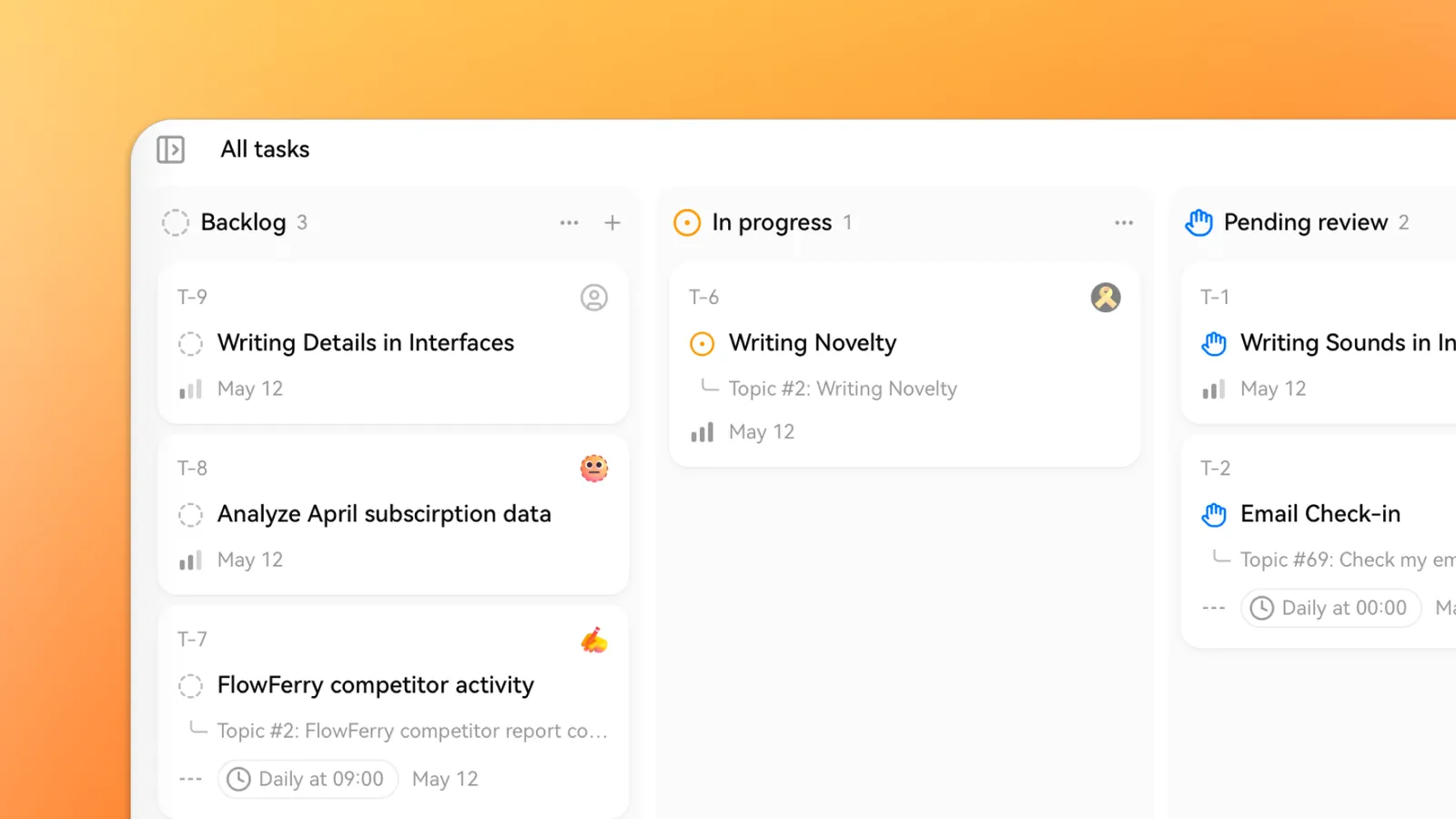
**Task** turns a conversation with an agent into trackable work. Instead of chatting in real time and copying results around, you write down what you want, assign it to an agent, and let the agent run it in the background. The agent posts progress, updates the status when it's done, and replies when you leave a comment.
|
|
|
|
If you've used Linear or GitHub Issues, the mental model is the same — only the assignee is an agent, and the agent actually does the work.
|
|
|
|
## When to Use a Task
|
|
|
|
Use a Task when you want an agent to:
|
|
|
|
- Do work that takes more than a few minutes to finish.
|
|
- Run on a schedule (every morning, every Monday, every month).
|
|
- Report back asynchronously while you focus on something else.
|
|
- Be re-assigned, commented on, or revisited later with full history preserved.
|
|
|
|
For quick, one-shot questions, stay in the regular chat. For anything you'd otherwise track in a todo list or ticket, create a Task.
|
|
|
|
## Task Lifecycle
|
|
|
|
Every task moves through a small set of statuses:
|
|
|
|
| Status | Meaning |
|
|
| ------------------ | --------------------------------------------------------------- |
|
|
| **Backlog** | Created but not yet picked up by the agent. |
|
|
| **In Progress** | The agent is actively working on the task. |
|
|
| **Pending Review** | The agent finished and is waiting for you to verify the result. |
|
|
| **Done** | You confirmed the result; the task is closed. |
|
|
| **Canceled** | You closed the task before completion. |
|
|
|
|
The agent moves a task from `Backlog` to `In Progress`, then to `Pending Review` when it thinks the work is done. The transition to `Done` is yours to make — see [Reviewing Results](#reviewing-results) below.
|
|
|
|
## Creating a Task
|
|
|
|
<Steps>
|
|
### Open the Tasks Panel
|
|
|
|
Click **Tasks** in the left sidebar to open the task list for your workspace.
|
|
|
|
### Create a New Task
|
|
|
|
Click **New Task** in the top right. Give it a clear title — the agent uses the title and description to understand what you want.
|
|
|
|
### Write a Description
|
|
|
|
Describe the work the same way you'd describe it to a teammate. Include any links, files, or constraints the agent needs. You can paste images and attach Resources just like in a regular chat.
|
|
|
|
### Assign an Agent
|
|
|
|
Pick an agent from the **Assignee** dropdown. Choose an agent whose capabilities match the task — for example, the **Research Agent** for reading and summarizing, or a custom agent you've built. You can reassign later if the first agent isn't the right fit.
|
|
|
|
### Choose a Schedule
|
|
|
|
Pick **Run once** for a one-off task, or **Repeat** to put it on a schedule. See [One-off vs. Recurring](#one-off-vs-recurring) below.
|
|
|
|
### Submit
|
|
|
|
Click **Create**. The task lands in **Backlog**, and the agent picks it up shortly after.
|
|
|
|
</Steps>
|
|
|
|
<Callout type="info">
|
|
You can create a Task directly from any chat message — open the message menu and choose **Turn
|
|
into Task**. The conversation context is carried over automatically.
|
|
</Callout>
|
|
|
|
## Working With the Agent
|
|
|
|
While the task is `In Progress`, the agent posts updates inside the task — every step it takes, every tool call, and every intermediate result. You don't have to watch in real time; open the task whenever you want to see where things stand.
|
|
|
|
### Reviewing Results
|
|
|
|
When the agent thinks it's finished, the task moves to `Pending Review`. Open the task detail page to verify the result. You have two options:
|
|
|
|
- **Confirm Complete** — if the result is good, click the **Confirm Complete** button. The task moves to `Done` and closes out.
|
|
- **Follow up** — if something needs adjustment, leave a comment instead. The agent picks the task back up and continues from where it left off.
|
|
|
|
A `Pending Review` task never auto-completes; you stay in control of when work is done.
|
|
|
|
### Comments and Follow-ups
|
|
|
|
Every task has a comment thread. Use comments to:
|
|
|
|
- **Clarify** when the agent asks a question mid-run.
|
|
- **Course-correct** if the agent is heading in the wrong direction.
|
|
- **Iterate** at review time — leave a comment like _"Same thing but exclude weekends"_ and the agent reopens the task and tries again.
|
|
|
|
The agent reads new comments automatically and follows up. There's no separate "send" — your comment is the instruction.
|
|
|
|
<Callout type="info">
|
|
If the agent is in the middle of a run, your comment is queued until the next checkpoint so it
|
|
doesn't interrupt mid-step.
|
|
</Callout>
|
|
|
|
### Artifacts
|
|
|
|
Pages the agent creates during execution — research notes, summaries, drafts, anything written to your workspace — are listed in the **Artifacts** section of the task detail page. Open, share, or keep editing them directly from there without leaving the task.
|
|
|
|
## One-off vs. Recurring
|
|
|
|
Tasks support two schedule modes.
|
|
|
|
### Run Once
|
|
|
|
The default. The agent runs the task immediately, posts a result, and moves it to `Pending Review` for you to confirm. Use this for everything that doesn't need to repeat.
|
|
|
|
### Repeat
|
|
|
|
Put the task on a schedule and the agent re-runs it automatically. Each run is appended to the same task as a new entry, so you build up a history you can compare across runs.
|
|
|
|
Supported intervals:
|
|
|
|
- **Hourly** — every _N_ hours.
|
|
- **Daily** — at a specific time each day.
|
|
- **Weekly** — on chosen days of the week.
|
|
- **Monthly** — on a specific day of the month.
|
|
- **Custom** — any cron expression.
|
|
|
|
<Callout type="warning">
|
|
Recurring tasks consume credits on every run. Check the estimated credit cost shown in the
|
|
scheduler before saving, and pause the task if you no longer need it.
|
|
</Callout>
|
|
|
|
You can pause, resume, or change the schedule at any time from the task detail page. Pausing keeps history intact; deleting removes the task and its run history.
|
|
|
|
## Examples
|
|
|
|
A few patterns that work well as Tasks:
|
|
|
|
- **Daily market digest** — a Research Agent that summarizes overnight news every weekday at 8 AM.
|
|
- **Weekly competitor scan** — an agent that visits five competitor sites and flags pricing changes.
|
|
- **One-off deep research** — a long-running task ("compare these 12 vector databases") you check on later.
|
|
- **Recurring data pull** — an agent that queries a database and posts the result on Mondays.
|
|
- **Triage queue** — an inbox-like project where you drop ideas and an agent prepares first-draft answers overnight.
|